The cardboard box arrived after a local film event, carrying a jumble of lanyards, lighting notes, and several disposable cameras that volunteers had passed around during the closing night. Waiting to see whether those simple cameras had caught anything usable felt familiar: the pictures might contain a sharp, perfectly timed expression, or they might be dark, blurred, and partially blocked by a finger. Yet even after the film was processed, there was another decision to make. Development had made the photographs visible; digitization would determine how much of their available detail, color, and texture reached our screens.
That distinction is the key to learning how to scan disposable camera photos. You may be starting with an unopened camera, a packet of small prints, or strips of developed negatives, and each starting point requires a different workflow. The best method is not automatically the most expensive one. It depends on whether you need quick phone-ready files, editable master images, or dependable scans from photographs that cannot be replaced.
The First Decision: Prints, Negatives, or an Undeveloped Camera?
If you still have the camera and the film has not been developed, ordinary scanning is not yet possible. A scanner records an existing image, while development uses a chemical process to make the latent exposures on the film visible and stable. Send the complete camera to a film processor that accepts one-time-use cameras. Do not casually dismantle it to retrieve the cartridge: Fujifilm’s instructions warn against disassembly because the flash circuit can present an electric-shock risk.
Disposable cameras commonly contain 35mm film, also called 135 film, but their specifications are not universal. For example, Fujifilm lists one QuickSnap Waterproof model with 27 exposures of ISO 800 35mm film, a fixed-focus 32mm f/10 lens, and a 1/125-second shutter. Another QuickSnap specification identifies ISO 400 135 color-negative film intended for C-41 processing. These are model-specific examples, not settings that should be assumed for every disposable camera. Check the camera packaging or ask the processor what film and process apply.
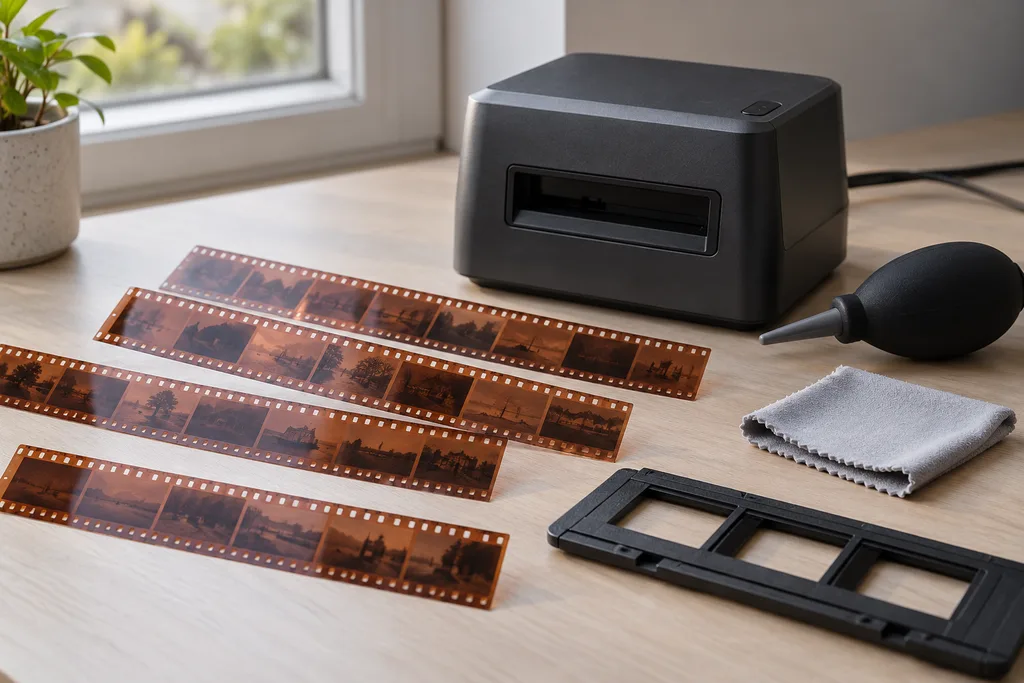
If a lab returned prints and no negatives, the prints are your available originals and can be scanned with a flatbed, an all-in-one printer, or a phone. If you have both prints and negative strips, scan the negatives when image quality matters. A print has already passed through one interpretation of exposure, color, cropping, and paper contrast; scanning it adds another reproduction step. The negative generally contains more useful information, although extracting it requires transmitted light—light passing through the film—and software that can invert and correct the orange-masked color negative.
How to Scan Disposable Camera Photos at Home
There are three realistic routes for an ordinary home user. A lab offers the least complicated path, especially when it can develop and scan in one order. At home, you can scan returned negatives in a film-capable scanner or photograph them with a digital camera and macro lens. Scanning developed prints is the simplest fallback, but it should not be confused with returning to the original film image.
Scan the Developed Prints
Clean the scanner glass, place the print square to its edges, and scan in color even when the photograph appears nearly monochrome; the color channels may help with later correction. For a typical small print, a moderate resolution is enough for sharing and ordinary reprints. Increasing the setting far beyond the detail present in the paper only creates a larger file and may emphasize paper texture, dust, or sharpening halos.
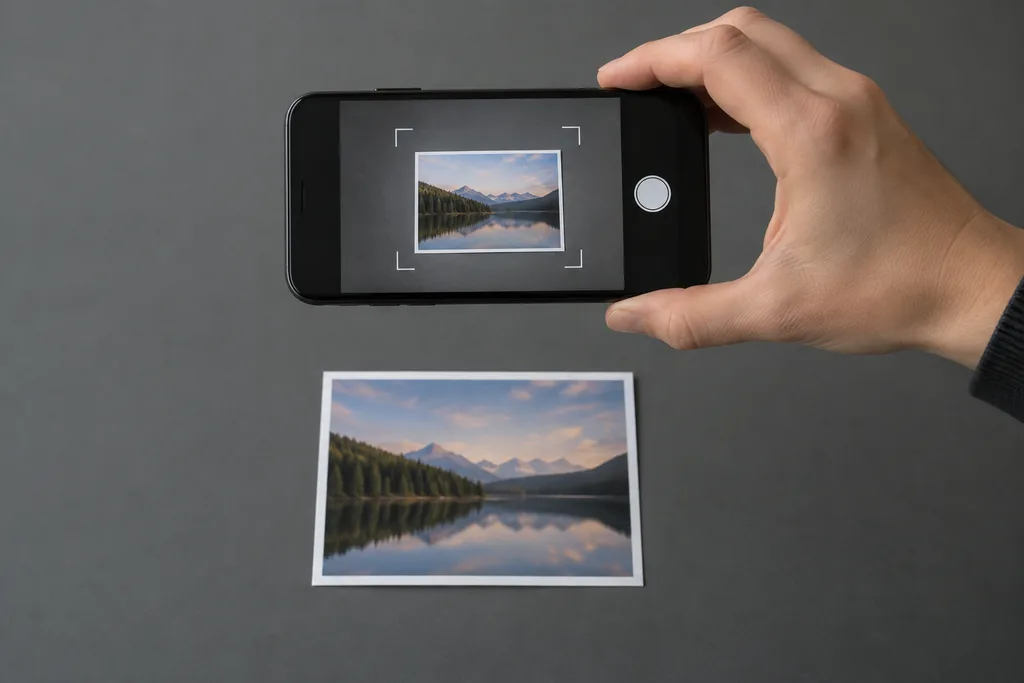
A phone is useful when convenience matters more than maximum detail. Put the print on a flat, matte surface under soft, even light, hold the phone parallel to it, and avoid direct reflections. A print-scanning app can correct perspective and combine captures to reduce glare. This is helpful for quick family sharing, but it cannot reconstruct fine detail that was lost when the negative was printed, nor can it access areas cropped from the print.
Scan the Returned 35mm Negatives
A dedicated film scanner is usually the most direct home method. The holder keeps the strip at a repeatable position, the scanner provides transmitted light, and its software can produce a positive image from a color negative. A flatbed can also work, but only if it has a proper backlit transparency unit and a film holder. An ordinary reflective flatbed intended for documents illuminates material from the wrong side and should not be improvised into a film scanner.
Scanner specifications deserve cautious reading. Advertised resolution is not the same as resolved photographic detail, and the highest selectable number may simply produce oversized files. Dedicated film scanners with good optics often extract more effective detail from 35mm film than inexpensive generic film converters. Film-capable flatbeds can be convenient for multiple strips and several formats, but a similarly priced dedicated scanner may produce a crisper 35mm result.
The lab remains part of this option rather than its opposite: it can process the film and return uncut or sleeved negatives for home scanning. Ask for the negatives back, and avoid assuming that a set of lab JPEGs is the only deliverable worth keeping. I have compared punchy lab JPEGs with flatter home scans from the same frame; the lab file often looked better immediately, while the restrained scan sometimes allowed more controlled shadow and color adjustments.
Photograph the Negatives with a Digital Camera
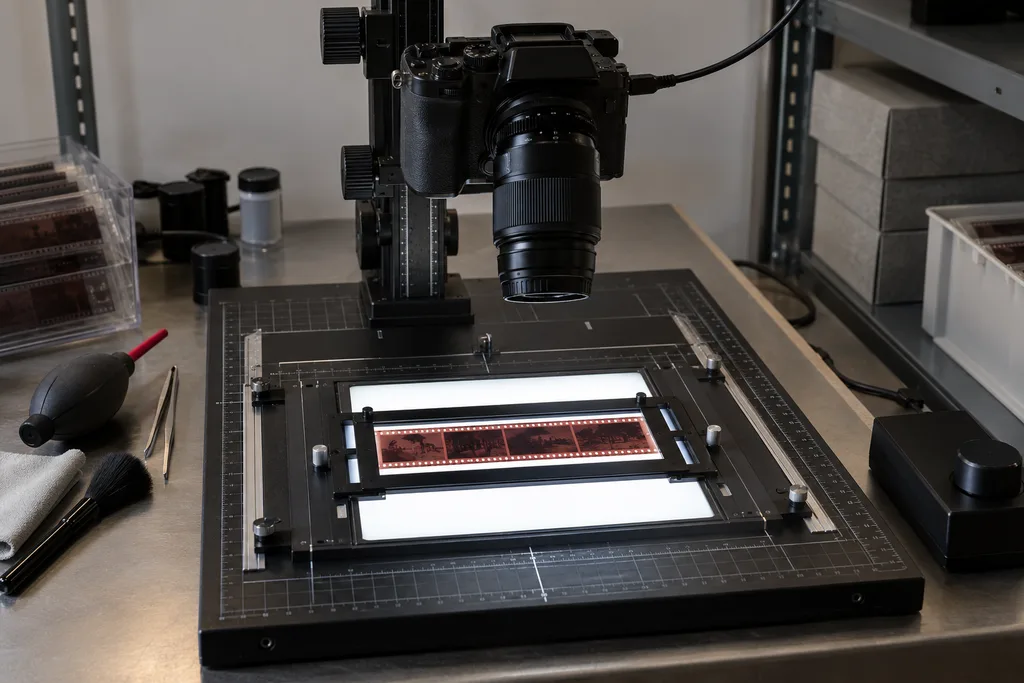
Camera scanning can be fast and detailed when you already own suitable equipment. Mount a digital camera with a macro lens above a film holder, place an even light source below the negative, and make the sensor and film planes parallel. Use a stable copy stand or similarly rigid support, focus carefully, capture RAW files, and shield the setup from stray light. The camera should remain fixed while each frame advances through the holder.
The light source matters more than its brightness alone. It must be even across the entire frame and sufficiently consistent in color. During one copy-stand comparison, an apparently harmless bright patch in the backlight produced a gradual color shift that looked like deteriorated film until the light was tested separately. A diffuser and a small gap between the light and film can improve uniformity, but poor alignment, flare, or film curl can still reduce sharpness.
A Clean Home Workflow That Avoids Most Mistakes
Begin with a clean, calm workspace rather than correcting preventable defects afterward. Turn off nearby fans, wipe the work surface, clean the scanner glass or copy stand, and inspect the film under angled light. Handle negative strips only by their edges. A hand blower should remove loose particles; avoid forceful rubbing, canned-air propellant, household glass cleaner, and any liquid treatment unless you know it is safe for that film. Mold, sticky residue, torn perforations, or lifting emulsion deserves professional evaluation before scanning.
Dust looks insignificant on a small negative and enormous at 100 percent on a monitor. I have completed an entire strip before noticing that the same pale fiber appeared in every frame, which meant it had been sitting on the scanner rather than on the film. A quick preview of the first image at full size would have prevented the repetition. Make that preview part of the routine, checking focus, framing, histogram, dust, and light uniformity before continuing.
Keep the film flat and aligned in its holder, leaving a narrow border around the image when possible so that automatic exposure tools do not mistake cropped shadows for the end of the tonal range. Capture consistently before beginning creative edits. Scanner software can perform negative inversion during capture; camera-scanned RAW files generally need inversion in compatible editing software afterward. Color-negative film has an orange mask, so inversion involves more than merely reversing light and dark values. Establish neutral highlights and shadows carefully, then adjust color balance by eye without expecting one preset to match every film stock, exposure, and processing batch.
Separate capture from editing. First make a clean, neutral scan that preserves the available tones. Then work on a copy to set black and white points, correct color casts, crop, rotate, and apply restrained noise reduction or sharpening. This sequence makes errors easier to identify and prevents an aggressive correction from becoming the only surviving version.
What Scan Resolution and File Format Should You Use?
Resolution should follow the destination. For phone viewing, messaging, and modest web use, a moderate scan can be entirely adequate. A frame intended for careful editing or a larger print benefits from higher effective resolution, provided the scanner, film, and original camera actually contain detail to support it. Disposable cameras have simple fixed-focus lenses, so multiplying pixels cannot create texture that the lens, exposure, or film never recorded.
The Canadian Heritage Information Network’s negative-digitization guidance gives an archival reference range of roughly 1,000 to 4,000 pixels per inch for negatives from 35mm through 4×5 inches, with at least 8 bits per color channel and 16 bits per channel considered ideal. These are useful reference points, not mandatory settings for casual snapshots. Run a representative test at two sensible settings and compare real detail at the intended output size instead of choosing a number solely because it is larger.
Save an untouched master as TIFF or another lossless format when storage permits, especially if substantial editing may follow. RAW is the capture master for a camera-scanning setup, while an exported TIFF can preserve the inverted positive and later corrections. JPEG remains practical for email, phones, websites, and everyday viewing, but repeated saving discards information. A high-quality JPEG may look excellent; it simply should not be your only copy when the photograph matters.
Why Scans Often Look Soft, Dark, or Wrong in Color
Some faults originate in the disposable camera. Its fixed-focus lens has a useful distance range rather than precise autofocus, and nearby faces may be soft. A flash has limited reach, so a distant subject in a dark hall can remain underexposed even when the foreground is bright. Camera movement, a blocked lens, expired film, processing variation, and severe underexposure all limit what a scan can reveal. Color correction cannot recover shadow information that was never recorded, and sharpening cannot turn motion blur into fine detail.
Other faults are introduced during digitization. Dust creates white or dark marks, curved film moves parts of the image outside the focus plane, and a tilted camera makes one edge sharper than the other. Uneven backlighting causes gradients and color shifts. Automatic scanner adjustments may clip highlights, crush shadows, or vary from frame to frame. Incorrect removal of the orange mask can leave a strong cyan, blue, or green cast.
To identify the source, examine the negative itself and compare more than one frame. If every scan has a mark in the same location, inspect the scanner glass, sensor, or holder. If neighboring frames look normal but one is thin and dark on the film, the likely problem is exposure. If a lab scan and a home scan differ mainly in contrast and color, neither necessarily represents an absolute original: film stock, processing, scanner profiles, display calibration, and correction choices all influence the result.
When a Lab Is the Better Choice
Choose a lab when the film is undeveloped, irreplaceable, damaged, or too important for your first scanning experiment. A lab also makes economic sense for one or two cameras when buying a film scanner, holder, macro lens, and stable stand would cost more than the work itself. Ask what file dimensions and formats are supplied, whether corrections are automatic, and whether the negatives will be returned.
Home scanning becomes more attractive when you have many rolls, want control over each frame, or already own suitable equipment. A dedicated film scanner favors a repeatable, guided workflow; a transparency flatbed favors flexibility; and a camera setup favors speed and adjustable capture quality but demands careful alignment and light control. For an important roll, I prefer a dependable lab first and experimentation after the negatives return safely.
The Files Are Only Safe When They Are Backed Up
A scan is not preserved merely because it exists on a laptop. Keep the untouched master, an edited working copy, and a smaller sharing version with clear filenames. Store copies on at least two separate devices, with another copy in a different physical location or a reputable cloud service. Keep the negatives sleeved, labeled, dry, and away from heat and direct light; a digital file does not make the film disposable.
The practical sequence is straightforward: process undeveloped film without opening the camera, request the negatives, clean and inspect them, capture a flat and well-aligned scan, invert color negatives carefully, preserve a lossless master, edit only a copy, and create backed-up JPEGs for sharing. Scan prints or use a phone when those are the materials and tools available, but choose the negative whenever you want the strongest starting point the disposable camera can provide.
Frequently Asked Questions
Can I scan a disposable camera without developing it first?
No. The exposed film contains a latent image that must be chemically processed before normal scanning. Send the intact camera to a processor that accepts disposable cameras, and do not disassemble the body yourself.
Can I scan the printed photos with my phone?
Yes. Place each print on a flat, nonreflective surface, use soft light, and hold the phone directly parallel to it. This is a convenient way to make shareable copies, but it cannot restore detail, tonal range, or cropped image area absent from the print.
Should I scan the negatives or the prints?
Scan the developed negatives when you have appropriate equipment and want the best available foundation for editing or printing. Scan the prints when the negatives are missing or when speed and simplicity matter more than maximum image information.