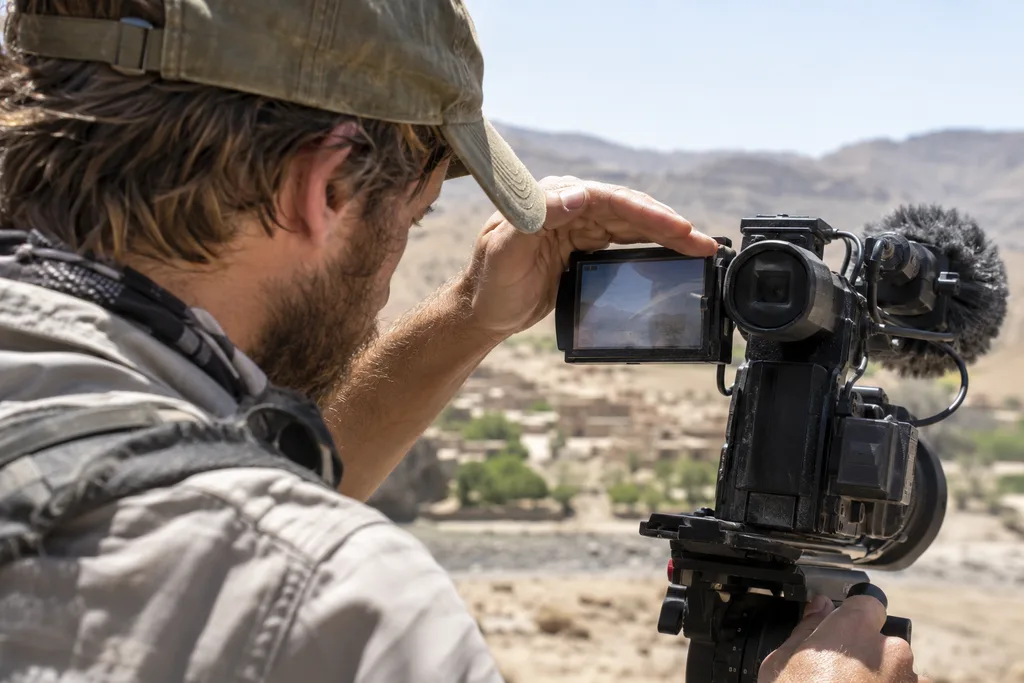
A documentary subject is waiting in hard afternoon light, the sound recordist is ready, and the rear LCD shows more sky and my own reflection than the face in front of the lens. This is when an operator may be tempted to open the aperture. Resist that impulse. When a camera monitor is too dark in sunlight, the recorded image may be correctly exposed; the viewing conditions, display settings, or monitoring transform may simply be hiding it.
The fastest remedy is diagnostic: shade or re-angle the display, check its brightness and power behavior, confirm the monitoring gamma or LUT, and then judge exposure with signal-based tools. This order separates a visibility problem from an exposure problem before an unnecessary correction damages the footage.
What a Dark Camera Monitor in Sunlight Usually Means
A display can look dark for several reasons. Its backlight may genuinely be set low, but strong ambient light can also overwhelm the light coming from the panel. A glossy surface adds reflections and veiling glare, reducing perceived contrast even when the backlight works normally. At an unfavorable viewing angle, some panels lose contrast or shift color. These effects can make a correctly exposed picture appear almost black.
Other symptoms belong to the video signal or device behavior. A Log feed may look flat, while an incorrect HDR, PQ, HLG, or LUT setting can make it misleadingly dark or washed out. The camera signal may truly be underexposed. A monitor can also reduce brightness because of an eco mode, low battery, or thermal protection. A screen that remains abnormally dim indoors, flickers, or shows uneven illumination may need service. Naming the symptom accurately prevents random menu changes.
Diagnose the Display Before Changing Exposure
Check Whether the Backlight Is Actually Dim
Move into open shade or cover the display with a jacket briefly. If menus, icons, and the live image are all dim under controlled shade, inspect the camera’s LCD brightness, monitor brightness, outdoor, sunny-weather, eco, auto-dim, and power-saving options. Also check settings that switch automatically between the LCD and electronic viewfinder. Names and behavior vary by manufacturer and model, so consult the manual instead of copying a menu path from another camera.
Compare two display brightness levels while leaving aperture, shutter, ISO, and ND unchanged. If the screen brightens but the histogram does not move, the adjustment is affecting monitoring only, as expected. More backlight can improve legibility, but it may consume additional battery power and generate more heat. It does not brighten the recorded footage.
Look for Sunlight Reflected from the Screen
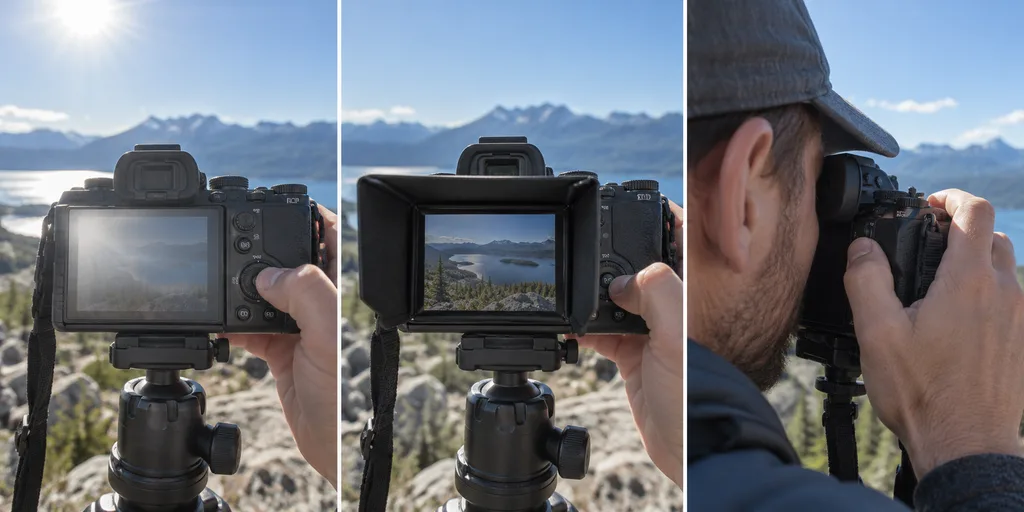
If menus become clear when shaded, glare is the primary problem. Tilt a vari-angle screen, rotate yourself relative to the sun, or position your shoulder so your head and body cast a shadow. During exterior interviews, I first make a small body shadow and compare the LCD with the viewfinder. That ten-second test often tells me more than maximizing the backlight. With glossy displays, changing the reflection angle by a few degrees may restore contrast more effectively than adding brightness.
Separate a Dark Feed from a Flat or Invisible Preview
A Log image commonly has restrained contrast and saturation, which can be mistaken for weak exposure. A monitoring LUT can convert that feed into a more familiar preview, but it normally changes only what you see. It does not repair underexposure or alter the source recording unless the camera or recorder is explicitly configured to bake the transform into the file.
Check whether the camera output and monitor input agree about Log, Rec.709, PQ, or HLG. Then shade the display and compare the picture with a histogram, waveform, zebras, or false color. If the scopes show suitable signal levels while the picture remains difficult to view, solve visibility. If they show low values, investigate exposure.
Common Causes in a Useful Diagnostic Order
Begin with inadequate backlight for the ambient conditions, reflections, and viewing angle. Next, check whether a poorly fitted hood, loupe, cable, screen protector, or rig component blocks the panel or forces an off-axis view. If the monitor began bright and later dimmed, investigate power saving, battery state, power input, and heat. Then verify the monitoring transform before treating the camera signal as underexposed. Persistent dimness, flicker, discoloration, or uneven illumination in a shaded room points toward a display or service issue rather than an exposure setting.
How to Fix the Problem on Location
Increase Brightness Carefully and Create Shade
Use an outdoor or high-brightness setting if the camera provides one, while watching battery runtime and device temperature. A folding sunhood is more consistent than a hand and requires no power. A loupe blocks stray light even more effectively and can help with critical focus, although it changes how the camera is operated. In an emergency, a hat brim, jacket, flag, or body shadow may provide enough shade. Keep fabric clear of ventilation openings and never wrap a hot device tightly.
Change the Viewing Angle or Use the Viewfinder
Tilt or rotate an articulated screen until it reflects a darker part of the surroundings. Repositioning the camera or operator is often easier than repositioning a documentary subject, and it does not change the shot’s exposure. An eye-level viewfinder naturally excludes much of the surrounding light, making it a strong fallback for handheld framing. It is less convenient for low angles, shared viewing, or a focus puller, so choose it according to the shot.
Add a Daylight-Viewable Monitor When the Workflow Requires It
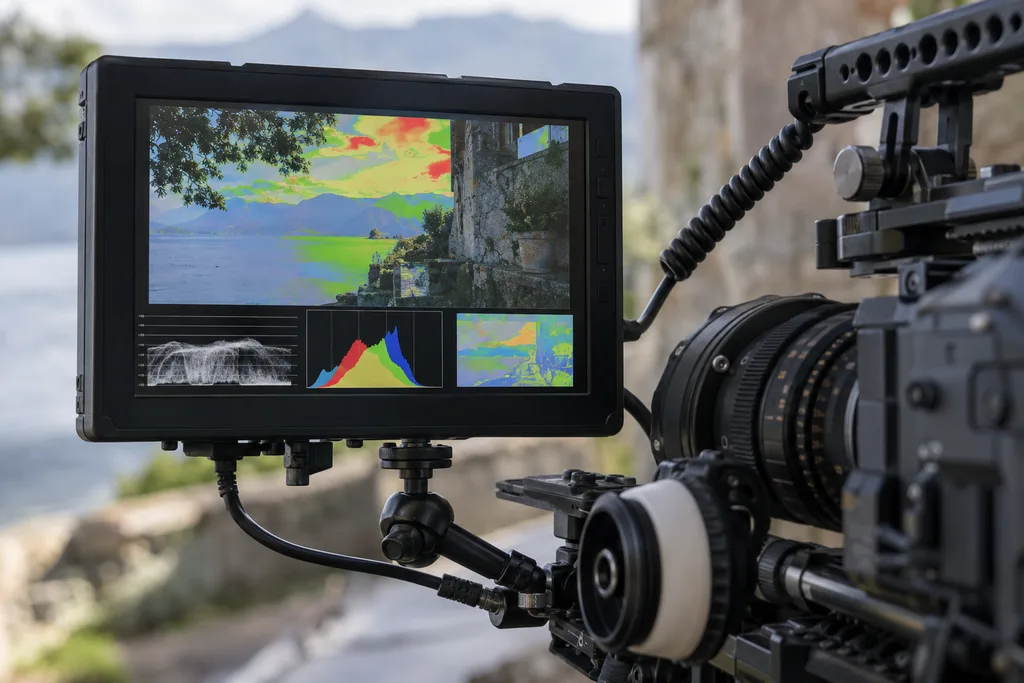
A larger, brighter external monitor makes sense when a director, assistant, or operator needs shared viewing, detailed focus, or scopes during long exterior work. Published brightness is useful for comparison, not a guarantee: reflections, screen coating, viewing angle, shading, calibration, and thermal behavior still matter. As one concrete example, the Atomos Shinobi 7 II specification states 2,800-nit peak brightness and lists waveform, histogram, false color, zebras, and LUT support. Those are features of that model, not a minimum every operator needs.
Blackmagic similarly describes its 12G HDR Video Assist models as having brighter touchscreens for outdoor sunlight and documents built-in scopes and 3D LUTs on the Video Assist product page. Compare the exact model, connections, power system, mounting, weight, and heat management with your rig. A monitor that improves visibility but makes a documentary setup top-heavy or sharply reduces runtime creates another problem.
Stop Trusting the Picture Preview When the Sun Is Strong
Picture brightness tells you how comfortably you can see the panel. Exposure tools describe the video signal. Under festival pressure or during an unrehearsed performance, I use the preview for composition and focus, then use scopes to decide whether highlights and important tones are landing where intended.
Use the Histogram to Check Distribution and Clipping
A histogram shows how tonal values are distributed from darker to brighter regions. A pile-up near an edge can warn that shadows or highlights are clipping, but there is no universally correct shape. A silhouette, white stage backdrop, and balanced interview should not produce identical graphs. Determine whether the camera’s histogram represents the recorded signal, a processed preview, or a selected picture profile, and interpret it in the context of the scene.
Use Waveform or Zebras for Deliberate Decisions
A waveform shows luminance across the image horizontally, making it easier to connect signal levels with specific areas of the frame. Zebras place a warning over a selected brightness threshold and can track a face, white costume, or highlight boundary while framing. Exact settings depend on gamma, recording format, camera behavior, and creative intent. Consult the manual and run a controlled test before a critical shoot instead of borrowing one supposedly universal value.
Use False Color with the Correct Legend
False color maps signal ranges or exposure relationships to colors, allowing useful patterns to remain visible when the normal image is hard to judge. However, scales differ among cameras and monitors. Confirm the device’s legend and establish whether the tool evaluates the Log signal, a LUT-transformed feed, or another stage of the monitoring pipeline. Do not transfer a color-to-IRE chart from one device to another. For a deeper workflow, see our guide to reading false color on a camera monitor.
LUT and Gamma Mistakes That Complicate Outdoor Monitoring
A Rec.709 monitoring LUT can make a Log feed easier to interpret by restoring familiar contrast and color, but consistency matters more than attractiveness. Confirm that the selected LUT matches the camera gamma and gamut, and determine whether exposure aids operate before or after that LUT. Avoid switching among untransformed Log, several creative LUTs, and HDR views while making exposure decisions; each mode changes the visual reference.
PQ or HLG displayed through the wrong mode can look unexpectedly dark, pale, or clipped. Trace the chain from camera output to monitor input, monitoring mode, and scope source. Record a short test, review it on a known display, and document the working configuration. A LUT should clarify the intended rendering, not become an improvised exposure correction.
When Heat or Power Management Dims the Screen
Maximum backlight output consumes power and adds heat, while direct sunlight warms the housing. If a display starts bright and dims after prolonged operation, move it into shade, confirm its vents are unobstructed, check battery and power settings, and allow it to cool according to the manufacturer’s guidance. Do not assume panel failure immediately or rely on a generic temperature limit; operating ranges and protective behavior are model-specific.
For event exteriors, I note whether dimming coincides with a battery warning, demanding recording mode, or extended time in direct sun. Reproducing the symptom later in a safe, controlled setup can distinguish thermal or power behavior from an intermittent cable or panel fault. Persistent dimness at normal indoor temperature warrants support or service.
A Practical Outdoor Troubleshooting Sequence
- Shade or re-angle the screen and look for a clear change in contrast.
- Check LCD brightness, auto-dim, eco, viewfinder switching, and power-saving settings.
- Confirm the camera output, monitor gamma, HDR mode, and monitoring LUT.
- Turn on a histogram, waveform, zebras, or false color and evaluate the signal.
- Check whether heat, battery state, or power management caused later dimming.
- Compare the picture with the viewfinder or a known external monitor.
- If the problem remains indoors or in shade, inspect the display and seek service.
When to Buy a Hood, Loupe, or Brighter Monitor
Choose according to your shooting pattern. A hood is inexpensive, light, and effective when glare is the main problem. A loupe excludes more light and supports critical focus for a solo operator, but it limits shared viewing and changes camera handling. A built-in viewfinder works well at eye level without another battery. A high-brightness external monitor provides a larger image, flexible positioning, and often better scopes, yet adds weight, power demand, cables, mounting points, and thermal considerations.
Before buying, test the existing display in shade. If it becomes clear, controlling reflections may deliver more value than pursuing a larger nit figure. If several people must see the image, or you repeatedly need waveform and false color outdoors, an external monitor is easier to justify. No particular brightness rating guarantees visibility at every sun angle.
Frequently Asked Questions
Does Increasing Camera LCD Brightness Make the Footage Brighter?
No. It normally changes only the display backlight. Recorded exposure is controlled through aperture, shutter, ISO or gain, filtration, lighting, and other capture settings.
Why Is My Camera Screen Black in Sunlight but the Image Looks Fine Later?
Ambient light and reflections can overwhelm the panel’s contrast even when the recorded signal is sound. Shade the display and confirm exposure with a scope before altering camera settings.
Is a 1,000-Nit Monitor Bright Enough for Outdoor Shooting?
It may be adequate in some conditions, especially with a hood, but there is no universal threshold. Direct sun, reflections, screen coating, viewing angle, calibration, and thermal behavior all affect visibility.
Can a LUT Make an Outdoor Monitor Easier to Read?
A suitable LUT can give Log footage more familiar contrast and color. It cannot overcome strong reflections, and it does not correct exposure.
Why Does My External Monitor Dim in Direct Sun?
Possible causes include thermal protection, automatic dimming, battery management, inadequate power, or a changed brightness setting. Shade and cool it safely, verify its power source, and consult the model’s documentation.
Should I Use False Color or a Histogram When Visibility Is Poor?
Use the tool you understand and can verify. A histogram quickly shows tonal distribution, while false color localizes ranges but requires the correct device-specific legend. Waveform and zebras provide further checks when available.
Make the Diagnosis Before You Change the Image
When a camera monitor is too dark in sunlight, remove glare first: shade it, clean it, and change the viewing angle. Then check model-specific brightness, power, gamma, LUT, and heat behavior. Judge the recorded signal with a histogram, waveform, zebras, or properly interpreted false color. Only after those checks should you change exposure or add hardware. That sequence protects the footage while revealing whether the real solution is a body shadow, viewfinder, hood, better monitoring configuration, or brighter external display.